For the garden you’ve already got, not the one you’re starting from scratch. Seven checklists and video lessons from BBC Garden Rescue’s Lee Burkhill, designed to help you decide what’s worth keeping before you spend a penny.
69


Quick Answer
For a free start, Gardena’s myGarden planner draws a simple 2D layout on a metre grid, and SketchUp is the software I would move on to for 3D. Before you download anything, draw your garden by hand with a scale ruler and graph paper, because no app teaches proportion or shows every plant at its mature size.
Which garden design app should I download? It is a question that comes up on the Garden Ninja forum, and it is a fair one. There are now dozens of planners, visualisers and 3D modelling packages promising to turn your boring rectangle of lawn into a finished garden in an afternoon, and some of them are free. I used SketchUp to produce 3D visuals for clients in my early years as a designer, so I know what this kind of software can do and where it falls down.
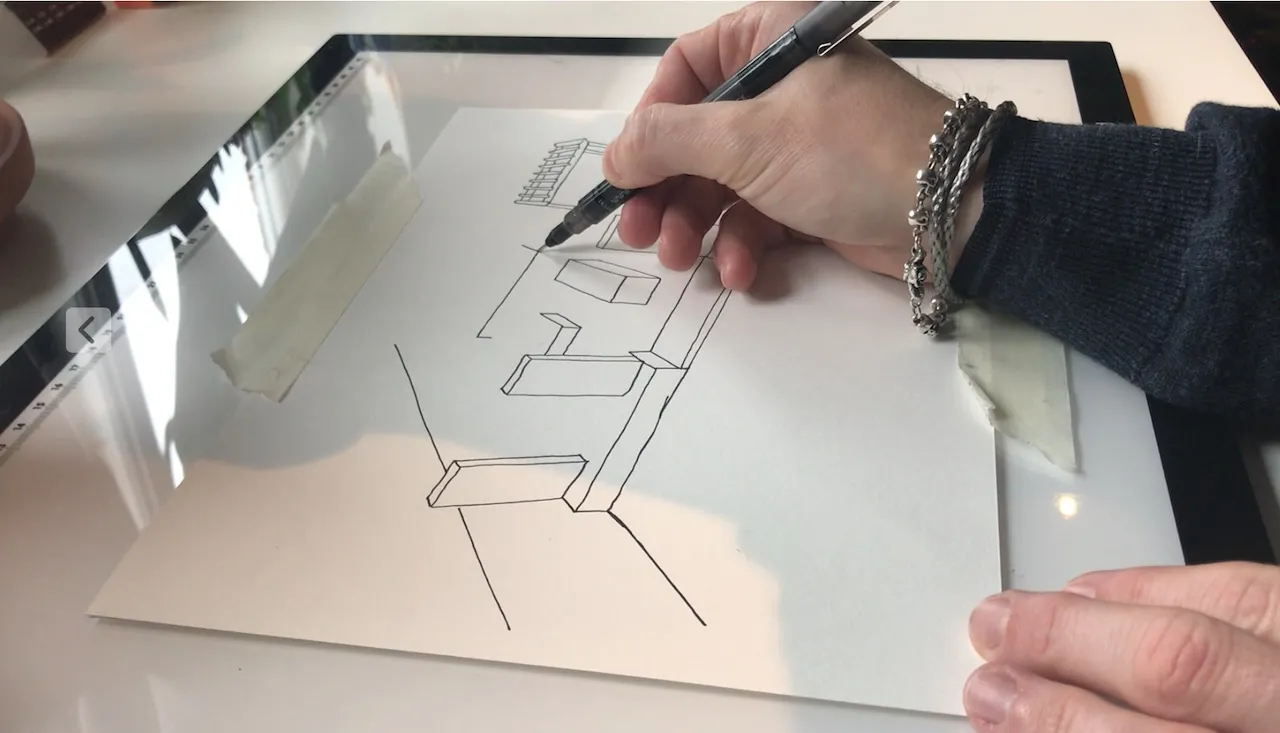
Here is where I stand, so you know what you are reading. I still draw and watercolour every garden I design by hand, from client gardens to show gardens, and I think anyone learning garden design should start the same way.
Software is useful once you understand proportion. Before that point, a drag-and-drop planner makes it far too easy to squeeze more into a garden than will ever fit, and to fill borders with plant symbols that bear no relation to the size those plants will reach in five years.
This guide covers the free and paid garden design software worth knowing about in the UK in 2026, what each one does well, where each one misleads beginners, and how to draw a garden plan by hand so that whichever tool you pick, you use it with a designer’s eye. I have also reviewed my own online courses towards the end, because for many readers the gap they are trying to fill with an app is a gap in design knowledge, and no app fills that.
Jump to a section
If you only buy one thing after reading this guide, make it a three-sided architect’s scale ruler from Amazon UK, because it will teach you more about the size of your garden than any app on your phone.
Every garden I design starts as a survey drawing on a sheet of paper, then a series of rough layouts on tracing paper laid over the top, then a fine line plan and a watercolour. My Garden Rescue designs start this way, and so did the show gardens I have built for the RHS. People sometimes assume this is nostalgia, or that I am simply slow to adopt technology. I spent twelve years as an IT project manager before I became a garden designer, so I am comfortable with software. I draw by hand because it makes me a more considered designer, and it will do the same for you.
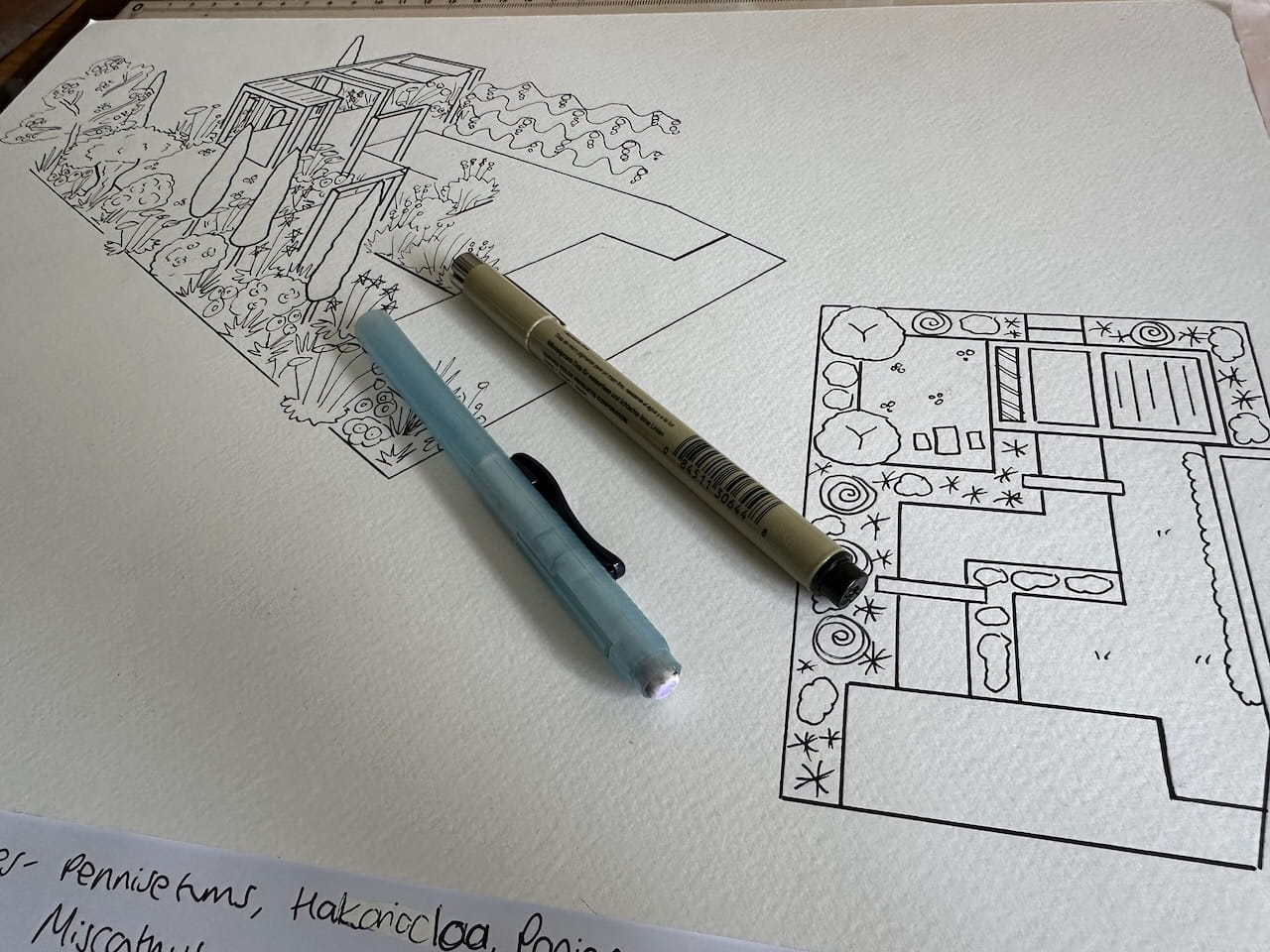
When you draw at 1:100, one metre in the garden becomes one centimetre on the page. A 3 metre patio is a 3 centimetre square. A 10 metre-long garden is 10 centimetres on paper, and you can see immediately that the patio takes up nearly a third of the length before you have drawn a single border. Every line you draw forces you to convert a real measurement into a drawn one, and that small act of arithmetic builds a feel for space. After a few plans you start to know, without measuring, that a 1.2 metre path looks generous and a 60 centimetre path looks mean.
Software skips that step. You drag a patio onto the screen, pull its corner until it looks about right and move on. The number is there if you look for it, but nothing makes you look. You learn proportion by mapping out each garden element and then seeing in real terms how crowded or bare a garden design may be. With software you’re just moving lines without really knowing the true ‘on the ground’ sizing or proportion.
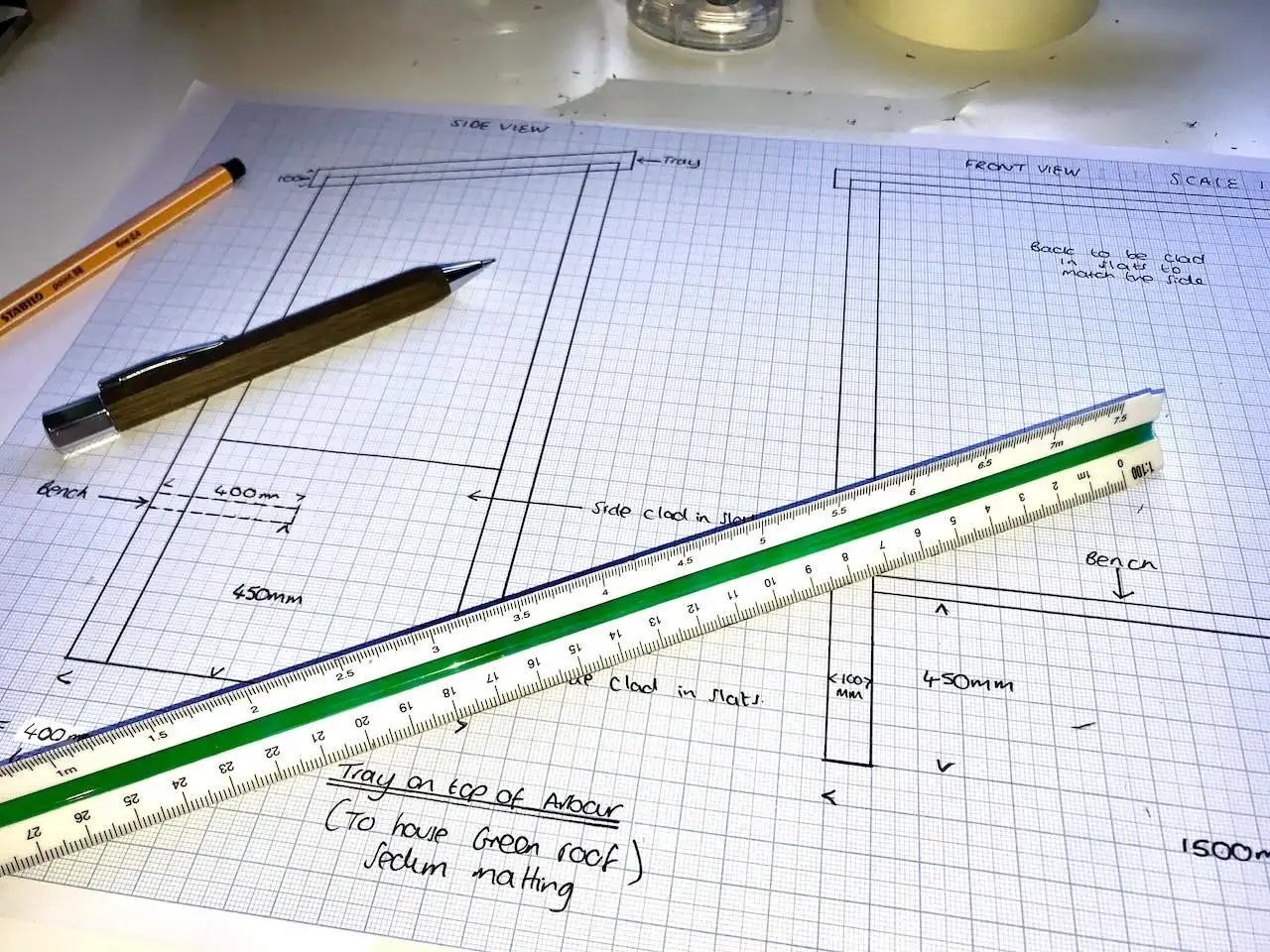
A hand-drawn layout takes time, so you think before you draw. You ask whether you need a pergola at all before you spend twenty minutes drawing its posts. You work out where the sun falls at six in the evening before you decide where the seating goes. That pause is where most good design decisions are made.
On a screen, adding another feature costs one click, so features accumulate. I see the results in plans people show me: a small new build garden with a hot tub, a pergola, an outdoor kitchen, a fire pit, a shed, a lawn and four borders, all rendered in full colour, none of it with room to walk between.
Tracing paper also gives you a way of working that most apps cannot copy. I lay a fresh sheet over the survey and try one idea, then lay another sheet over and try something different, and I keep both. Comparing three layouts side by side on a desk shows you which one has the best balance of open space to planting far more clearly than flicking between saved files.
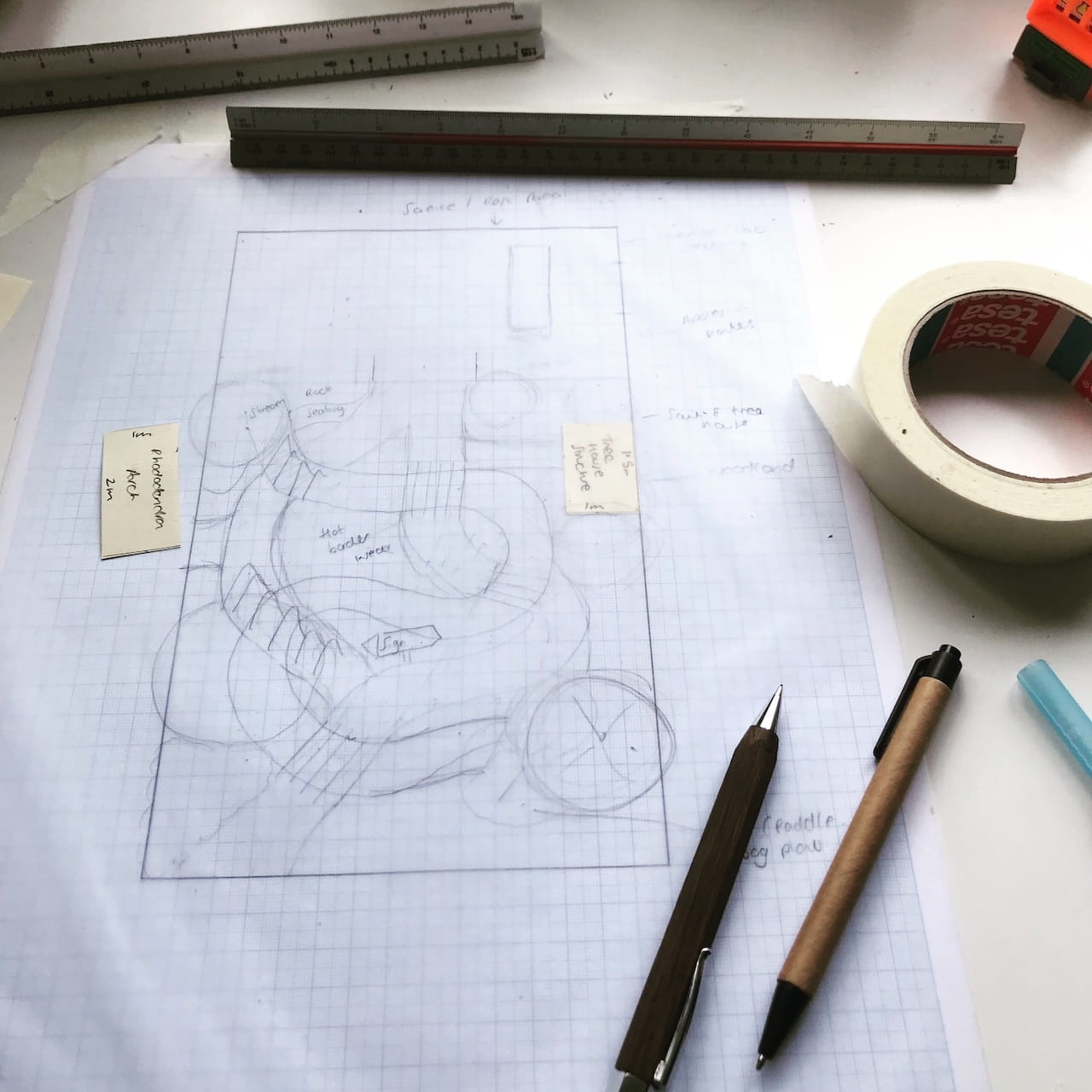
When I draw a planting plan, every plant is a circle set with a compass to its spread at maturity. A Choisya ternata that the RHS lists at 1.5 to 2.5 metres across is drawn as a circle at least 1.5 centimetres wide at 1:100, even though it arrives from the nursery in a 3-litre pot. Drawing that circle tells you how many plants a border can hold, and the answer is almost always fewer than you expected. It is the single most useful habit a beginner can pick up, and it is the one most garden design apps work against.

🛒 Buy a three-sided architect’s scale ruler from Amazon UK
A good program in experienced hands produces accurate, buildable plans, and a lot of professional designers use CAD every day. My concern is with the drag-and-drop planners aimed at beginners, and with what happens when someone who has never designed a garden uses one as a substitute for learning how. These are the problems I see most often.
Most planners give you a catalogue of objects at default sizes: a dining set, a hot tub, a summerhouse, a raised bed, a water feature. Each one drops onto the plan with no space around it. The software does not know that a six-seater dining table needs roughly 3 by 3.5 metres of patio once the chairs are pulled out, or that people need at least 90 centimetres to walk past a hot tub without brushing the planting. So the plan fills up, every corner holds a feature, and the screen looks like a show garden.
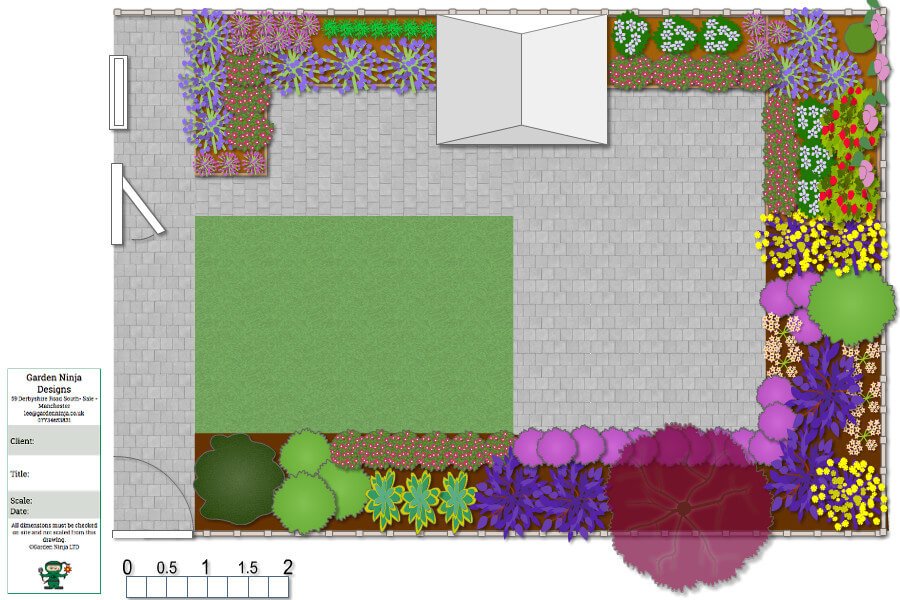
Built, that garden feels cramped and costs a fortune, because every feature is another lot of foundations, materials and labour. If you have priced up a landscaping job you will know that the cost is driven by hard landscaping, and my guide to garden design prices and costs explains why. The best small gardens I have designed have three or four elements done well, with lawn, gravel or planting as breathing space around them. Paper encourages that restraint, because drawing a fifth feature means rubbing out part of the fourth.
Plant size is where drag and drop planners mislead beginners most. Many planners show plants as tidy symbols or 3D models at a fixed size, and some do not tell you whether that size is the plant on the day you buy it or the plant in ten years. A Silver Birch appears as a neat lollipop a metre across.
Betula pendula reaches 12 metres or more in height, with a spread of 4 to 8 metres according to the RHS, and it will shade the patio you placed beside it. A row of Lavender is drawn as small dots touching each other. Each plant will reach up to a metre across, so the dots you placed 30 centimetres apart will be fighting each other by the second summer.
The result is overplanting on paper, which becomes overcrowding in the ground, followed by years of hacking back shrubs that were never going to fit. Some professional packages, such as Vectorworks Landmark, store a mature height and spread for each plant and draw it at that size, which is how it should be done. The free apps beginners use rarely do. If you use any planner, check every plant’s mature spread on the RHS Find a Plant database and resize the symbol yourself.
3D renders sell a finished look. The grass is striped, every border is full and flowering, and the evening light is golden. That picture shows you a garden that will never exist at any single moment, because real borders take two or three seasons to fill out and look different in every month. A hand-drawn plan with honest circles is less pretty and more truthful, and it gives you a far better idea of what you will see from the kitchen window next June.
It’s also important not to oversell your design to clients. The more incredible and unbelievable it looks in Vectorworks, Adobe, or Photoshop, the higher clients’ expectations will be. And remember, Ninja, most clients aren’t gardeners yet, so they will buy what you present without realising the maintenance and effort it takes to keep that look!
No planner knows that your garden slopes down 80 centimetres towards the back fence, that the soil is heavy clay, that the neighbour’s Sycamore casts shade across the lawn from mid-afternoon, or that the best view from the house is diagonally across to the far corner. You only learn those things by standing in the garden with a tape measure and a notebook, which is why every design I do starts with a survey and a brief. My garden design brief template walks you through the questions I ask before a single line is drawn, and my guide to garden aspect explains how to read the sun in your space.
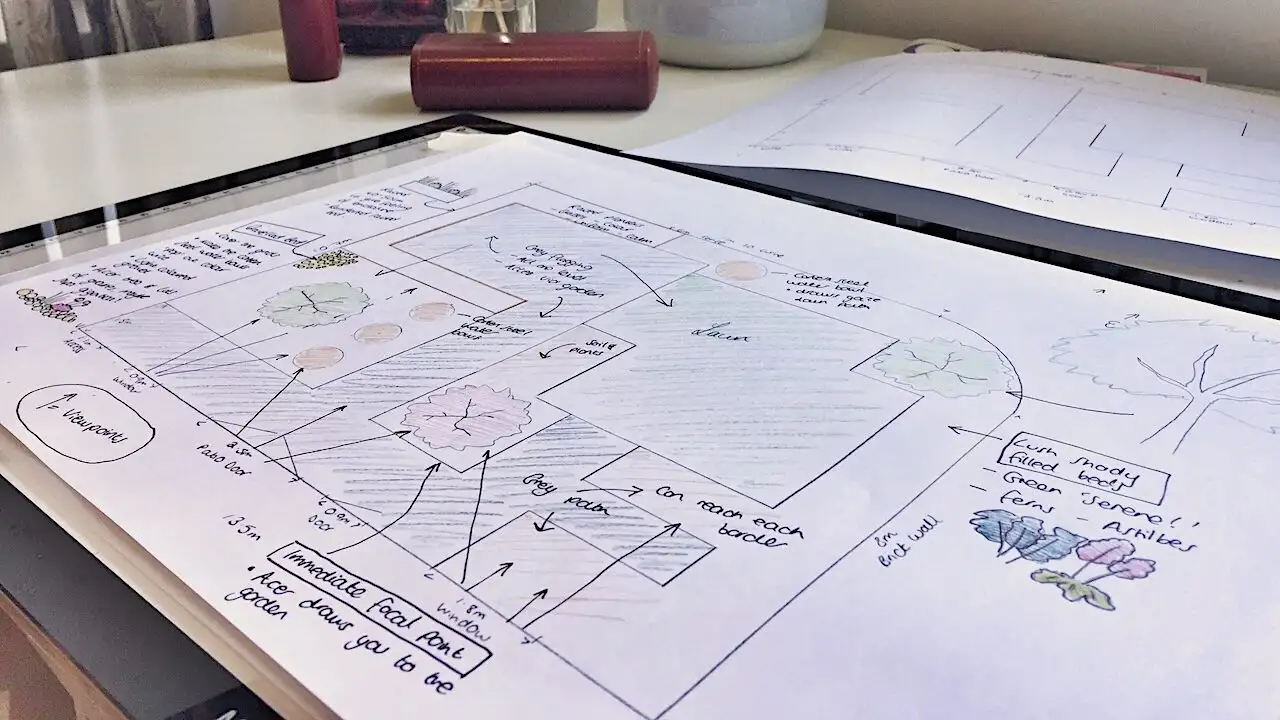
This doesn’t mean you should never use an app. It means you should learn the basics of proportion first, and then use software as a tool that serves your design, rather than letting the software’s catalogue decide what goes in your garden. With that in mind, here is what to look for when you do choose one.
The saddest thing I see with new designers is them letting software dictate the layout, via the tools it has, rather than letting their creative minds and hands draw up the space. The tools, options, and CAD warehouse choices actually restrict your creativity.
Whatever you choose, judge it on the things that make a plan buildable rather than on how good the 3D preview looks. These are the questions I would ask of any garden design app before spending time or money on it.
The table below summarises the tools covered in this guide. Prices were checked in October 2026 and change regularly, and several are billed in US dollars, so check the current price on the maker’s website before you buy.
| Tool | Best for | Platforms | Price | Draws to scale | Plant sizes |
|---|---|---|---|---|---|
| Pen, paper and scale ruler | Learning proportion, and every garden I design | Paper | Under £30 for a starter kit | Yes, at 1:100 or 1:50 | You draw mature spread with a compass |
| Gardena myGarden | Quick free 2D layouts | Web browser, tablet | Free | Yes, on a 1 metre grid | Generic symbols |
| SketchUp Free | Trying 3D modelling | Web browser | Free for personal use | Yes, exact dimensions | No built-in plant library |
| SketchUp Go and Pro | 3D visuals for serious designers | Web and iPad, with Pro adding Windows and Mac | Around £110 a year for Go, £345 to £384 a year for Pro | Yes, exact dimensions | 3D models you size yourself |
| Planner 5D | Beginners wanting a quick 3D preview | Web, Windows, Mac, iOS, Android | Free to start, paid catalogue | Object sizes can be edited | Generic, resizable |
| GardenPuzzle | Simple plans on iPhone and iPad | iOS, Mac, web | Free, with paid add-ons | Not stated by the maker | Generic symbols |
| Garden Planner (Artifact Interactive) | A simple paid planner | Mac and Windows | About $48 one-off | Custom rulers | Resizable symbols |
| Realtime Landscaping Plus | Windows users wanting 3D and plant growth | Windows | $149 one-off | Yes, prints to scale | Growth preview up to 20 years |
| iScape | Sketching ideas over a photo of your garden | iOS, Android | Free trial, Pro around $299.99 a year | Photo based, not a scaled plan | Full library needs Pro |
| Vectorworks Landmark | Professional landscape design | Windows, Mac | Around $1,530 a year | Yes, full CAD | Stores mature height and spread |
| Morpholio Trace | Digital tracing paper on an iPad | iPad, iPhone | Free, with paid tiers | Scale pen and scale ruler | No plant library |
| GrowVeg | Vegetable plots and crop rotation | Web | £25 a year | Yes | Crop spacing |
| RHS Find a Plant | Checking mature height and spread | Web | Free to search | Not a drawing tool | Height and spread bands |
If you want to try designing on a screen without spending anything, these are the free options I would look at first. Free tools are fine for blocking out a layout. Treat their plant symbols with suspicion and check every size yourself.
Gardena’s myGarden planner runs in a web browser on a laptop or tablet and is free to use. You draw your boundary on a 1 metre grid, then add lawn, paths, patios, beds, trees and shrubs from a menu, and there is a measuring scale for placing things accurately. The drawings have a hand sketched look, which I prefer to the plastic look of many 3D apps. Gardena makes watering equipment, so the planner also includes a sprinkler planning tool and can produce a shopping list for an irrigation system, which you can ignore if you only want the layout.
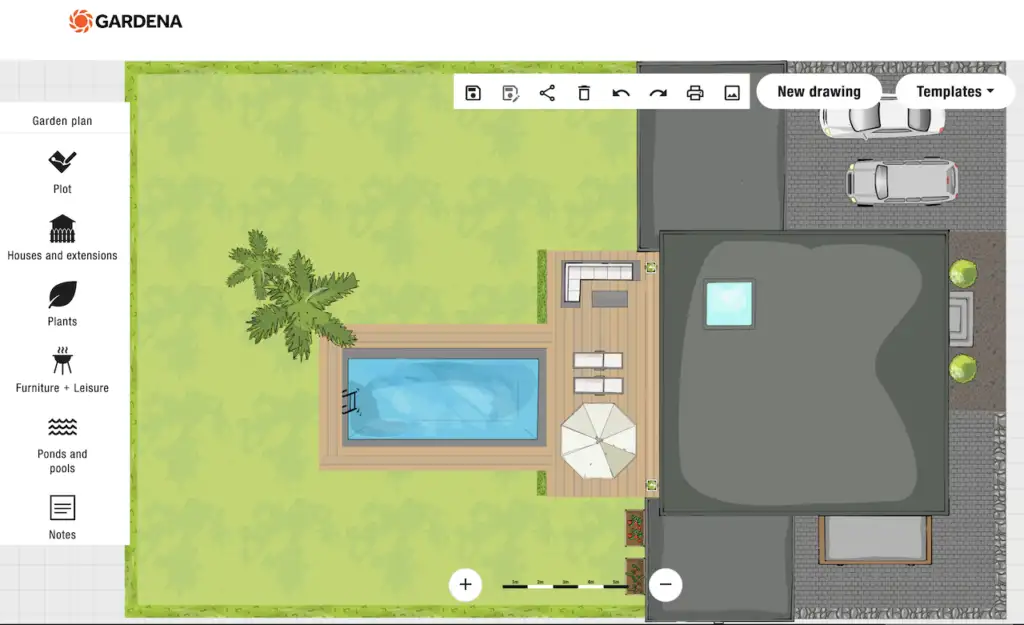
For a beginner who wants to test whether a patio fits in the corner or how much lawn is left once the borders go in, it does the job. The plant symbols are generic, so treat them as placeholders and size each one using its mature spread. It is a 2D tool and does not offer a full 3D walk through.
Gardena myGarden: benefits
Gardena myGarden: drawbacks
SketchUp is the software I would point any aspiring designer towards once they can draw a plan to scale by hand. The free version runs in a web browser for personal, non-commercial use and gives you the core 3D modelling tools. You can type exact dimensions, model your house and boundaries, push and pull walls, steps and raised beds into three dimensions, and look at the garden from any angle. It has no plant library of its own. Plants come from the 3D Warehouse as generic models, and you need to scale each one to the size it will reach.
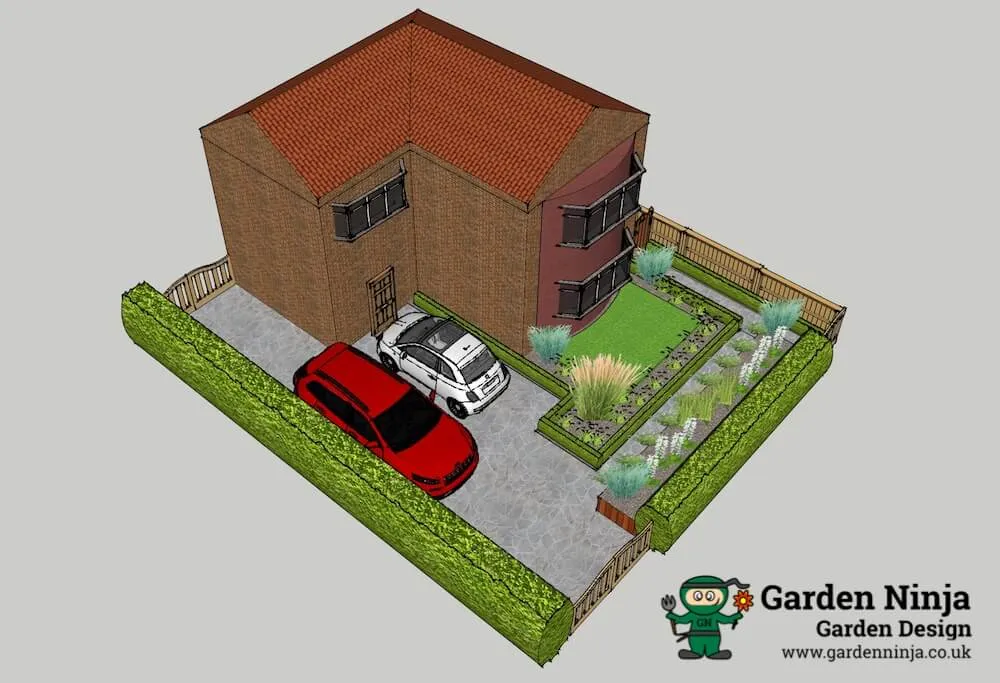
The free version has limits: no LayOut for producing scaled 2D drawing sets, no DWG or DXF import and export, no extensions and no offline use. For learning the software and modelling your own garden, none of that matters. Expect a learning curve. Your first few hours will be spent learning how SketchUp works rather than designing, which is one more reason to get the design thinking sorted on paper first.
SketchUp Free: benefits
SketchUp Free: drawbacks
Planner 5D is mainly an interior design tool with a garden mode. You draw in 2D and switch to a 3D preview with one click, and it runs on almost everything: web, Windows, Mac, iOS and Android. Object sizes and colours can be edited. It is free to start, with a paid catalogue that unlocks more items. It suits someone who wants to see roughly how a seating area might look outside the back doors. It is the clearest example of the catalogue problem I described above, because the whole experience is built around dropping objects in.
Planner 5D: benefits
Planner 5D: drawbacks
GardenPuzzle is a free app for iPhone, iPad and Mac, with a web version, and paid add-ons and a six month premium access option for extra content. It produces clean plan views and has added a four season preview and AI generated images in recent versions. The maker does not say whether drawings are to an exact scale or whether plant symbols reflect mature size, so I would use it for sketching ideas rather than producing a plan to build from.
GardenPuzzle: benefits
GardenPuzzle: drawbacks
RHS Find a Plant does not draw anything, but I would keep it open next to any garden design app you use. You can filter plants by height, spread, time to reach ultimate height, RHS hardiness rating, aspect, soil and sun, and every plant page shows its ultimate height and spread. Use it to check the size of every plant you add to a plan, and resize the symbol to match. It is also the most reliable way to pick plants for UK conditions, since several of the paid packages below are built around American plant lists.
RHS Find a Plant: benefits
RHS Find a Plant: drawbacks
If you are planning a full garden makeover, or you have caught the design bug and want to do more than one garden, a paid tool gives you more accurate drawing, better printing and, in some cases, better plant data. Prices below were correct when I checked in October 2026.
SketchUp Go is the subscription version for the web and iPad, at around £110 a year. SketchUp Pro adds the full Windows and Mac desktop application and LayOut, which turns your 3D model into scaled 2D plans and elevations, and costs around £345 to £384 a year depending on where you buy it. There is a short free trial of Pro. It is widely used across garden design and landscape architecture, so there are plenty of tutorials and designers who can help when you get stuck.
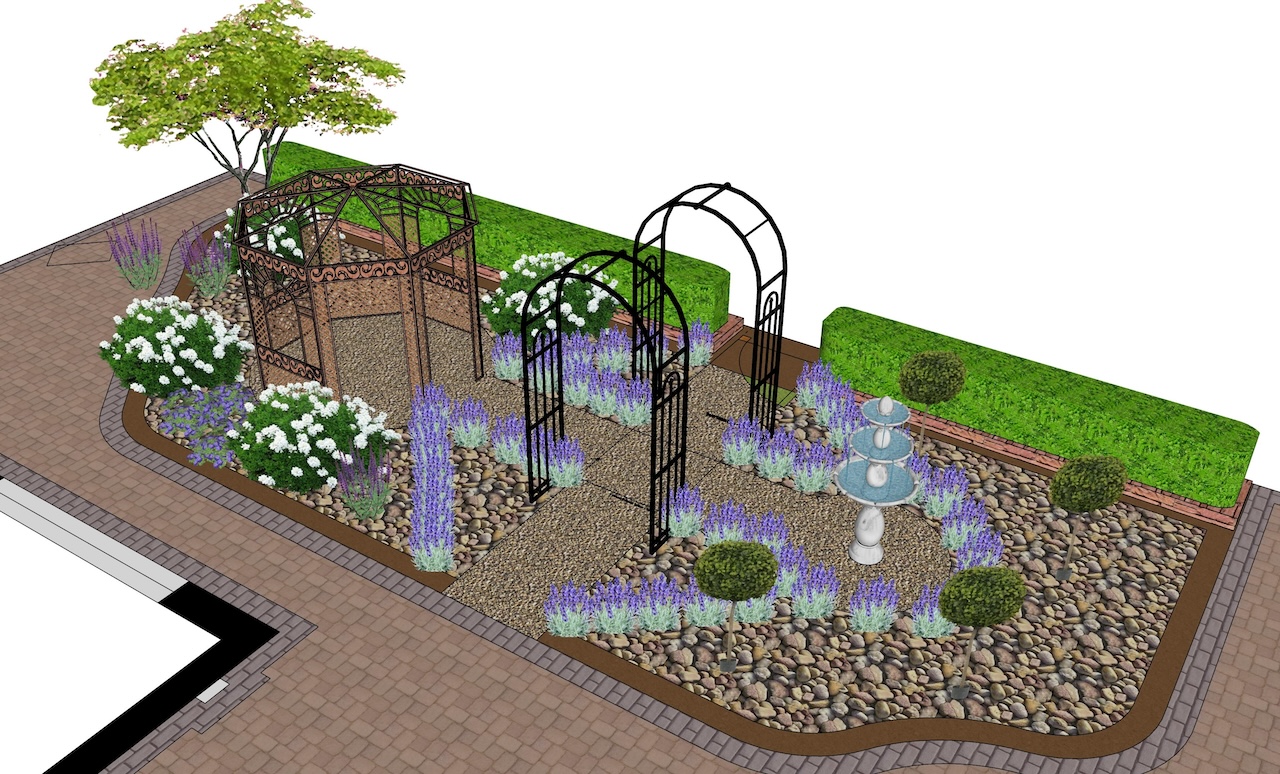
When I produced 3D visuals in SketchUp, they helped clients picture changes in level, the height of a pergola or how a new wall would sit against the house. What they never replaced was the plan underneath. I worked out the layout and the planting on paper first, then modelled it. I would suggest you do the same. If you are thinking of designing for other people one day, Pro is the version worth learning.
SketchUp Go and Pro: benefits
SketchUp Go and Pro: drawbacks
Garden Planner is a straightforward plan drawing program for Mac and Windows, sold as a one-off purchase for about $48, with a 15 day free trial. You draw your plot, add paths, buildings and plants from a symbol library and resize the symbols freely, which means you can set each plant to its mature spread if you check the size first. There is a 3D view. It is aimed at home gardeners rather than professionals and it is a reasonable choice if you prefer a single payment to a subscription.
Garden Planner: benefits
Garden Planner: drawbacks
Realtime Landscaping from Idea Spectrum comes in three editions: Plus at $149, Pro at $279 and Architect at $599, all one-off licences, with a free trial and a 30 day money back guarantee. It runs on Windows 10 and 11 only. Plus has a library of more than 5,900 plants and a plant growth tool that previews the design from three months to more than twenty years after planting. That growth preview is the feature I would most like to see in every beginner app, because it shows you what happens when plants put in too close together reach full size. The plant list is American, so cross-check hardiness against the RHS ratings before you rely on it.
Realtime Landscaping: benefits
Realtime Landscaping: drawbacks
iScape takes a different approach. Instead of drawing a plan, you take a photo of your garden on an iPhone or Android phone and place plants, paving, and features on top of it, with an augmented reality mode to view ideas in place. In my opinion, it’s not design software; it just lets you drag and drop plants into existing features on a 2D perspective image. In my demo, I found that you will struggle to get true proportions with this. It’s more for a ‘how would that tree and some plants look around my property’ software. To help bring the visual to life, but not necessarily create the design.
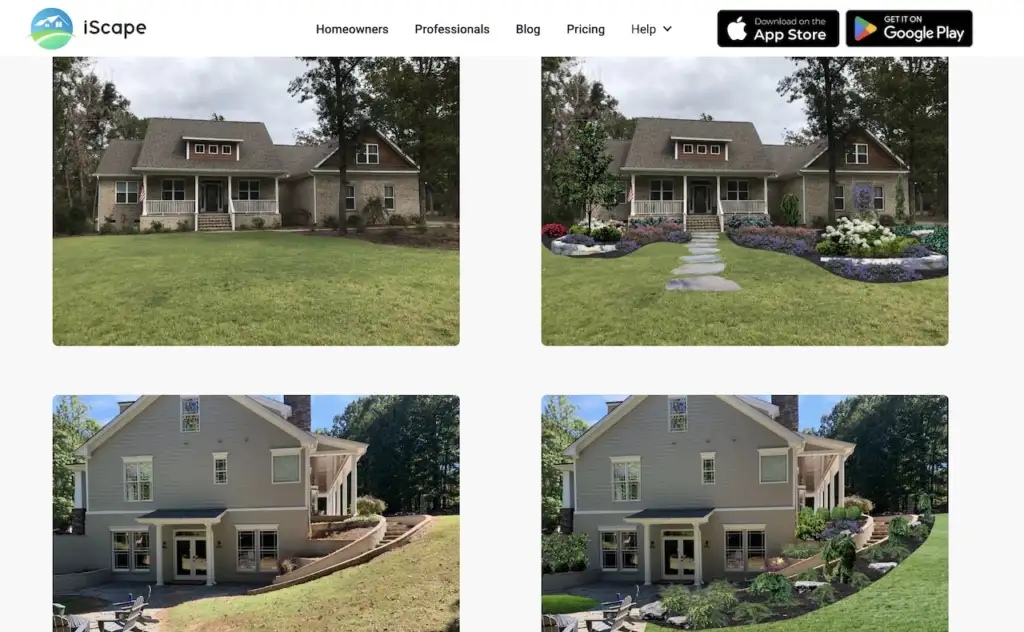
It is free to download with a limited trial, and the full plant database needs the Pro subscription at around $299.99 a year or $29.99 a month. It is useful for testing how a tree or a new path might look from the back door. Because you are working on a photo, there is no scaled plan, so it cannot tell you whether the idea fits.
iScape: benefits
iScape: drawbacks
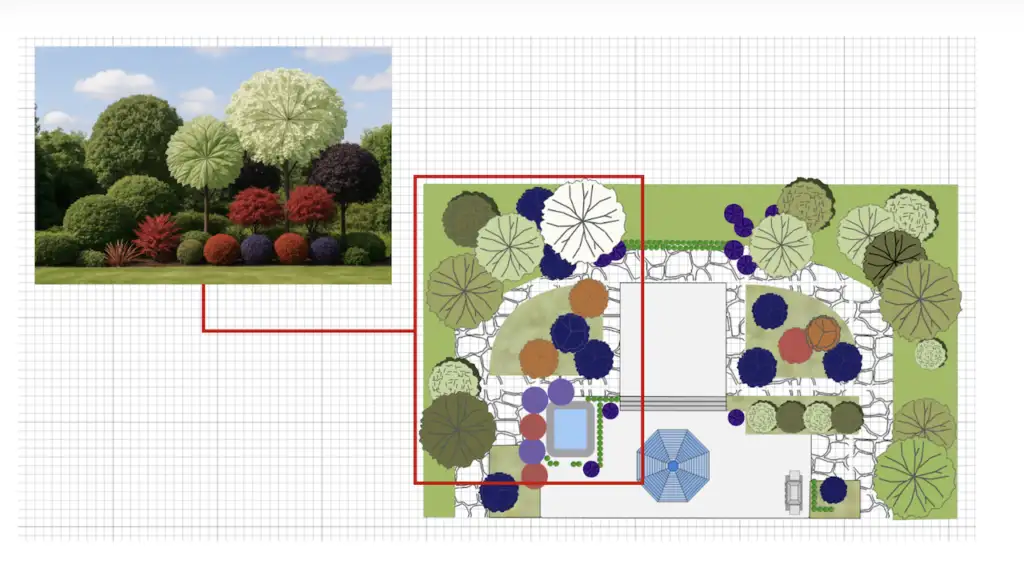
SmartDraw is a general diagramming program with garden plan templates, from around $6.95 a month for an individual licence. It draws to scale and can scale an imported PDF or map image, which is handy if you have a site plan from your house deeds or a builder. The plant symbols are generic. It suits people who are already comfortable with diagram software and want tidy, scaled 2D plans.
SmartDraw: benefits
SmartDraw: drawbacks
These are the tools you will find in design studios and landscape architecture practices. They are expensive, they take months to learn properly, and most home gardeners do not need them. I include them because readers thinking about a career in garden design often ask what the professionals use, and the answer is useful to know before you sign up to anything.
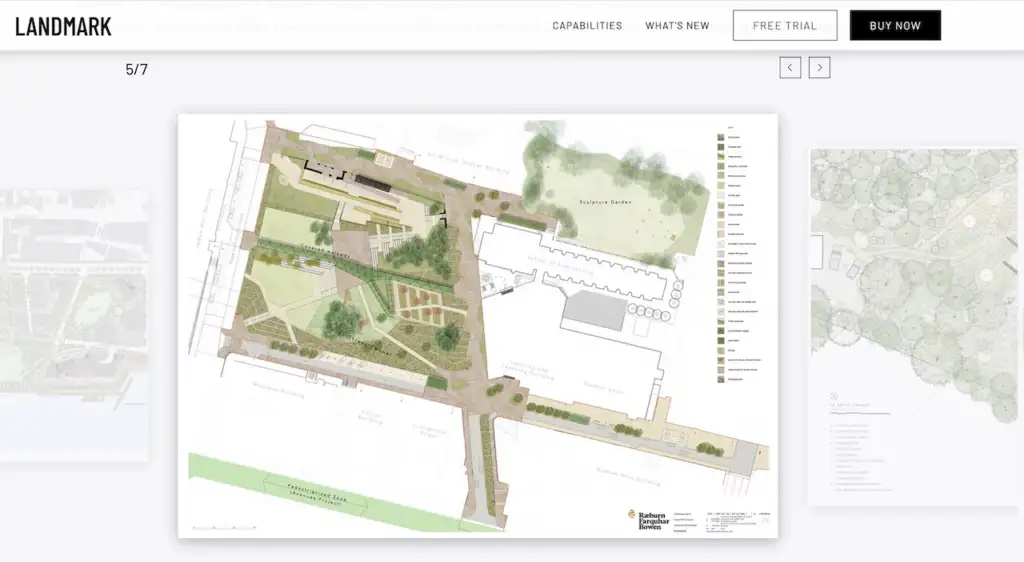
Vectorworks Landmark is full landscape design and BIM software for Windows and Mac, sold by subscription at around $1,530 a year, with a short free trial and free licences for verified students. Its plant tool draws each plant at its mature spread and records its mature height, both taken from a plant database and adjustable plant by plant, and each plant has a 2D symbol and an optional 3D form.
That is the right way to show plants on a plan, and it’s why many professional planting designers use it. For a single home garden it is far more software than you need. Nearly all the full-time landscape architects I know use this; it’s fabulously scalable for larger jobs. Chris from Garden Rescue is a master of this tool and creates gorgeous renders of his designs with it.
Vectorworks Landmark: benefits
Vectorworks Landmark: drawbacks
PRO Landscape from Drafix is a long established package used mainly by landscape contractors in the United States. It combines design on top of client photos, scaled site plans, 3D renders and cost estimating, and is priced at around $90 a month or $900 a year. Its plant lists and pricing tools are built for the American market, so it has limited relevance for UK home gardeners.
PRO Landscape: benefits
PRO Landscape: drawbacks
If you like the idea of drawing by hand but want your drawings on a screen, an iPad and an Apple Pencil get closer to paper than any planner app. This is where I would point anyone who wants a digital workflow without losing the hand drawn way of thinking.
Morpholio Trace works like a stack of tracing paper on an iPad or iPhone. You import a photo, a survey or a site plan, sketch over it on layers and switch between them. The free version includes scale tools such as a scale pen and a scale ruler, and paid tiers add more features, including drawing over maps to scale. It has no garden plant library, so you draw your own plant circles, which is exactly what I would want you to do.
Morpholio Trace: benefits
Morpholio Trace: drawbacks
Procreate is a one-off £12.99 drawing and painting app for the iPad. It has no scale tools and no plant library, so it is no use for a measured plan. It works well for colouring a plan you have already drawn, painting a perspective sketch or producing a watercolour style visual for a client.
Procreate: benefits
Procreate: drawbacks
Vegetable plots are the one area where a planner app earns its place for almost everyone. A veg plot is laid out to a grid, crops are spaced at known distances and the layout changes every year, so software that handles spacing and crop rotation saves real time.
GrowVeg from Growing Interactive is a UK company, and its Garden Planner costs £25 a year on auto-renewal, or £35 for one year, with a seven day free trial and no card needed to start it. It colour codes crops by rotation group and sends reminders when it is time to sow and plant out. The same planner runs under other brands, including Dobies. If you are planning a kitchen garden or an allotment, read my guide to crop rotation alongside it.
GrowVeg: benefits
GrowVeg: drawbacks
Every plan, drawn or digital, is only as good as the survey underneath it. Get a measurement wrong at the start and the patio that fitted perfectly on screen will be 40 centimetres short against the fence. I still survey gardens with a long tape measure, a trundle wheel and a notebook, taking offsets and triangulated measurements to fix the position of trees, drains and corners.
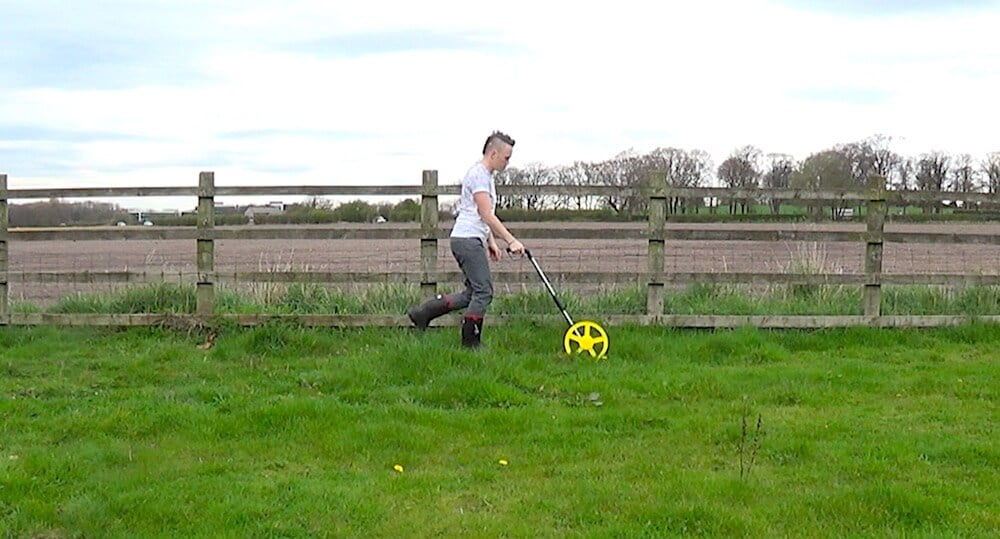
Moasure is a UK designed measuring device that uses motion sensors rather than a laser or GPS. You walk it around the edges of the garden and it builds a plan, with distances accurate to within 0.3% according to the maker. It exports DWG and DXF files for SketchUp, Vectorworks and AutoCAD, as well as PDF and CSV. The Moasure 2 PRO kit costs around $899 with no subscription, which makes sense for designers and landscapers measuring gardens every week. For one garden, a tape and a friend to hold the other end will do.
Moasure: benefits
Moasure: drawbacks
Phone measuring apps that use the camera are fine for checking the width of a doorway or a step, and not accurate enough to base a whole plan on. If you are surveying your own garden, my garden design process guide explains the order I work in.
The newest wave of garden design apps asks you to upload a photo and type a description, then generates a picture of a transformed garden. Some planners, GardenPuzzle and iScape among them, have added AI image tools too. They can be a fun source of ideas. The images are not plans, they have no measurements, and the plants in them are often impossible combinations at impossible sizes. I have covered this in detail in my guide Can AI Design My Garden?, so I will not repeat it here, except to say that an AI picture of a finished garden tells you nothing about whether it will fit yours.
This is the process I would follow before opening any app, and the same process sits underneath every digital design I have ever produced. You need very little equipment: a tape measure, a scale ruler, a pad of A3 graph paper, tracing paper, a pencil, a compass and a fine liner pen. My garden design drawing equipment guide goes through each item and what to look for.
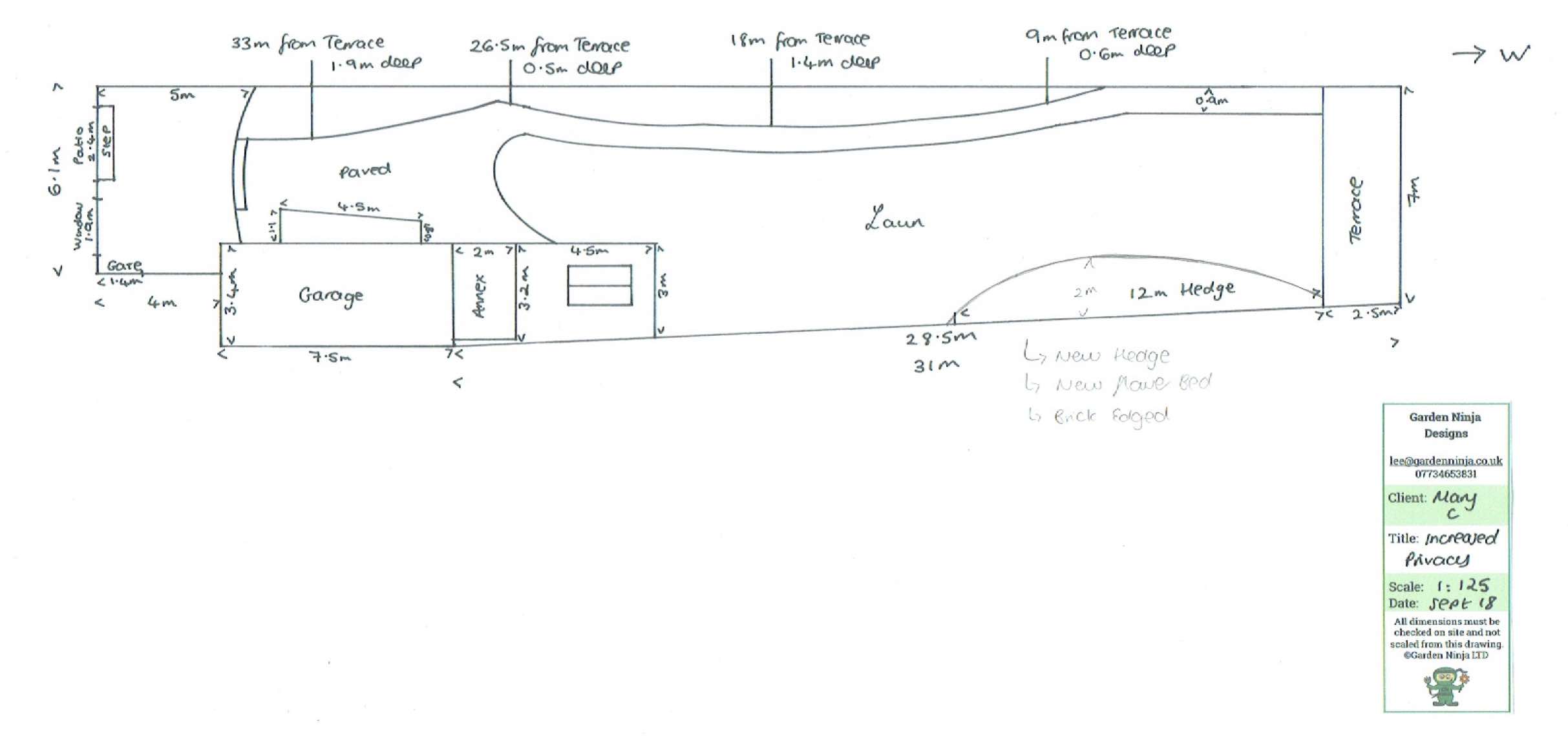
Measure every boundary, the back wall of the house, the positions of doors and windows, and anything fixed such as trees, manholes, sheds and outside taps. Fix the position of awkward objects by measuring to them from two known points, so they can be plotted accurately later. Note the direction of north, where the sun falls through the day, slopes, wet patches and the views you want to keep or hide. Rough sketches with numbers on are fine at this stage.
For most back gardens, 1:100 fits comfortably on A3, with one metre in the garden equal to one centimetre on the paper. For a small courtyard or a detailed planting plan, use 1:50, where one metre is two centimetres. Draw the house and boundaries in pencil with your scale ruler, add the fixed features and go over the final lines in fine liner. This drawing is your base plan and you will not draw on it again.
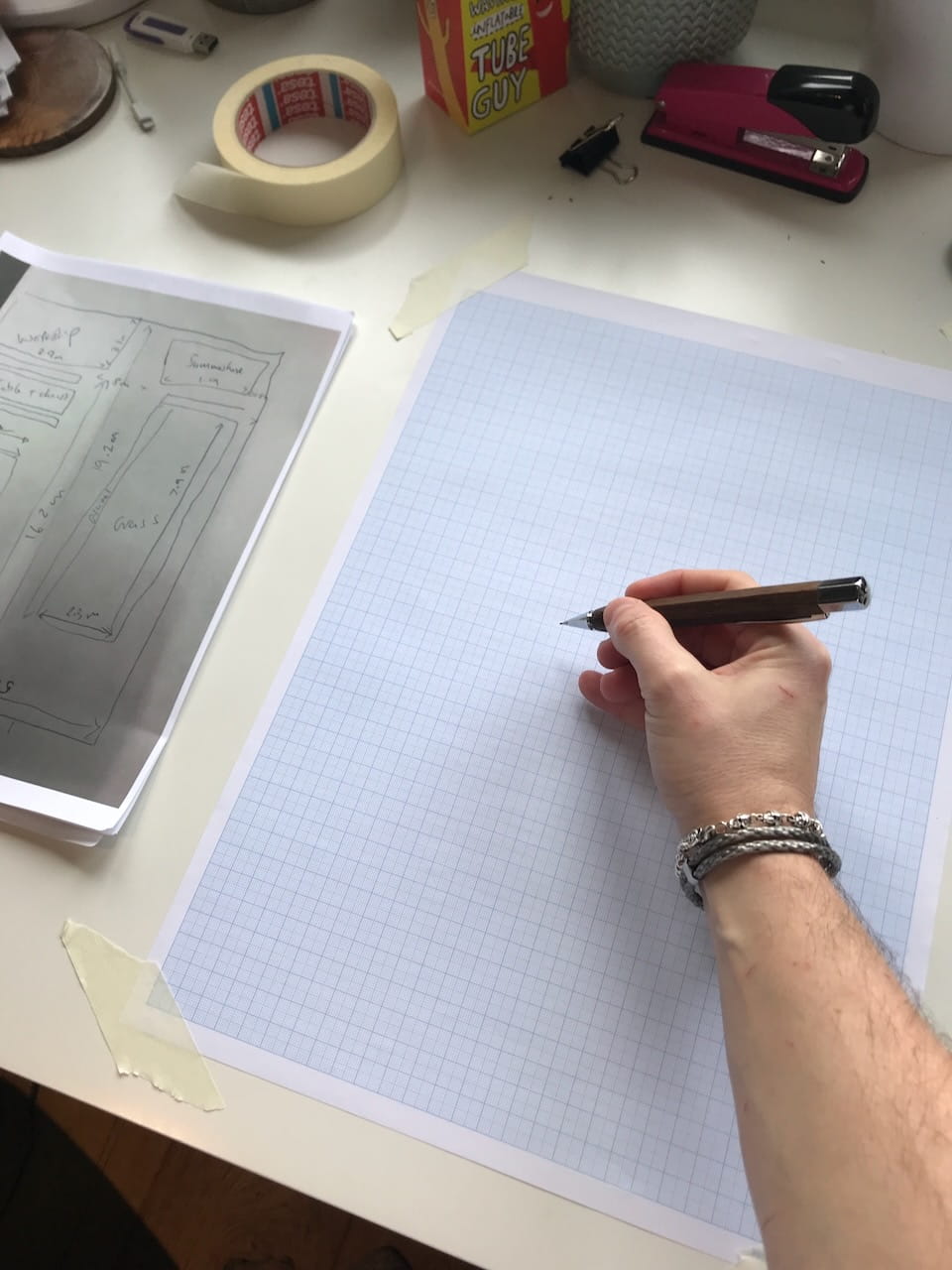
🛒 Buy an A3 graph paper pad from Amazon UK
Lay tracing paper over the base plan and draw loose bubbles for how you want to use the space: somewhere to eat, somewhere to sit in the evening sun, a lawn for children, a shed and bins, borders and a route through. Do several versions. This is the stage where you decide what the garden is for, and it is the stage drag and drop apps encourage you to skip.
🛒 Buy an A3 tracing paper pad from Amazon UK
On a fresh sheet of tracing paper, turn your favourite bubble diagram into real shapes with real sizes. Check every element with the scale ruler as you go: is the patio big enough for the table and chairs you own, is the main path at least 90 centimetres wide, is there space to get a mower or wheelbarrow from the shed to the lawn? If something does not fit, take something out rather than shrinking everything. That decision is what makes a layout feel calm.
Once the layout is settled, plan the borders. Look up each plant’s ultimate spread on the RHS website, set your compass to that spread at your chosen scale and draw a circle for each plant. Larger shrubs and trees go in first, then perennials, then fillers and bulbs. When the circles are touching, the border is full, however empty it will look on planting day. For more on choosing plants that suit your soil and light, my guide to where to start with garden design covers the decisions that come before plant shopping.
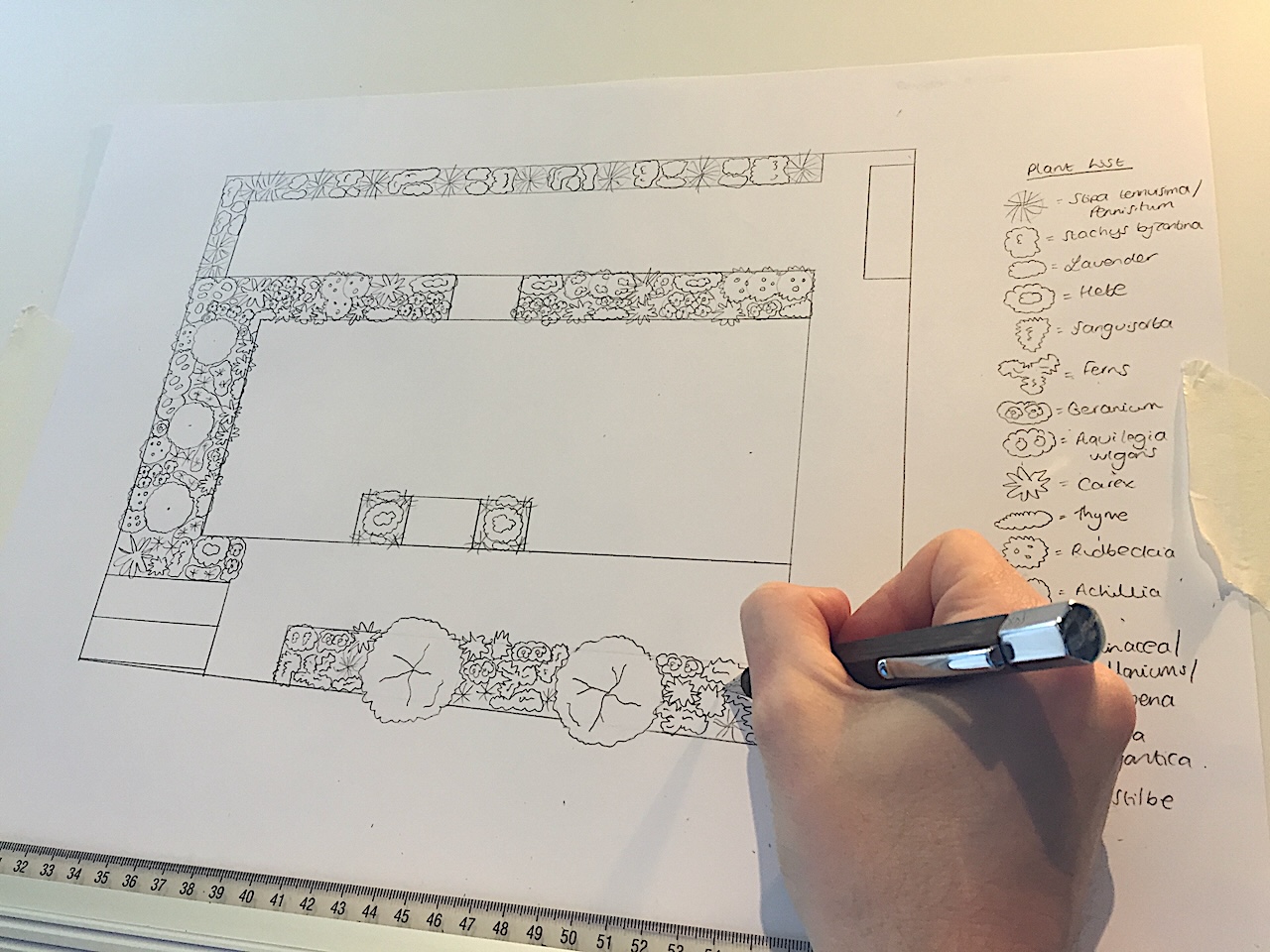
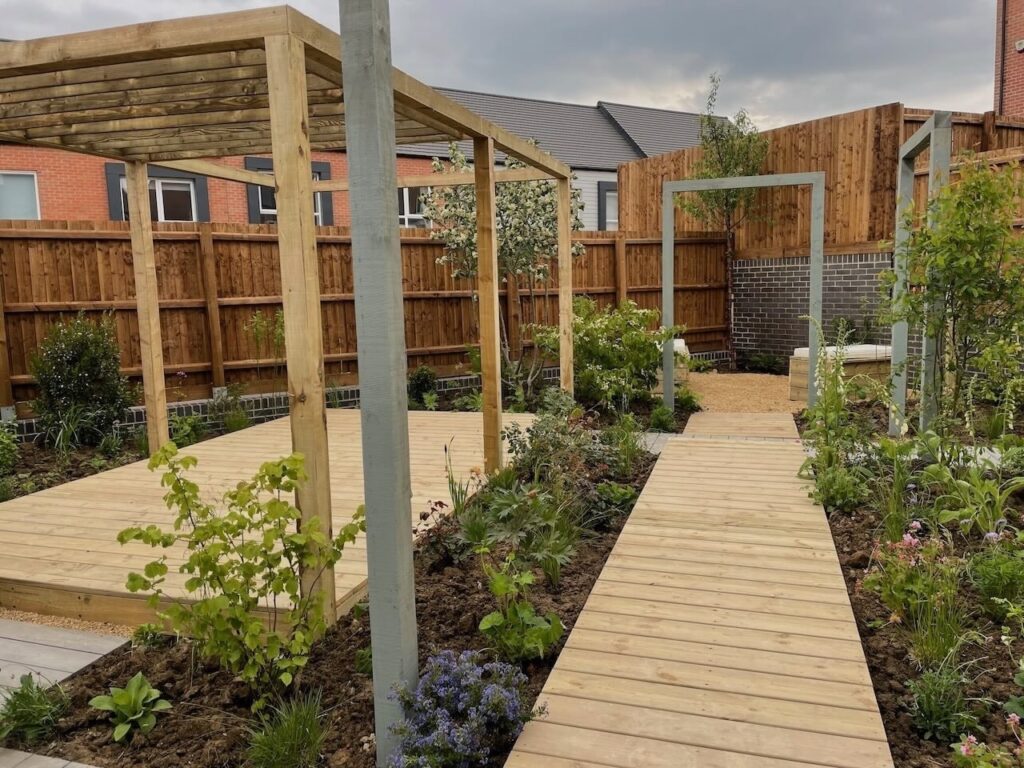
Go over the final design in fine liner and colour it if you like. I watercolour mine, but coloured pencils work well. Then take the plan outside and mark the main shapes on the ground with canes, string or spray line paint. Live with it for a few days. A layout that looked right on paper sometimes needs a path widened or a bed moved once you walk it, and it costs nothing to change at this stage.
If you are designing your own garden for the first time, start on paper and use Gardena’s free myGarden planner or SketchUp Free afterwards if you want to see your layout on a screen. Keep the RHS Find a Plant database open alongside, and resize every plant symbol to its mature spread. You do not need to pay for anything.
If you want to see your garden in 3D, perhaps because it slopes or you are planning walls, steps and structures, learn SketchUp. Start with the free version, model your house and boundaries, and only pay for SketchUp Go or Pro once you are using it regularly. If you are on Windows and want a one-off purchase with a plant growth preview, Realtime Landscaping Plus is worth a look. If you prefer a simple paid plan drawing tool, Garden Planner by Artifact Interactive is a reasonable choice.
If you want a digital version of drawing by hand, an iPad with Morpholio Trace gives you layers and scale tools, and Procreate is there for colouring and visuals. If you are growing vegetables, GrowVeg does that job better than any general design tool. And if you are thinking of becoming a garden designer, learn to draw by hand first, then SketchUp Pro, then look at Vectorworks Landmark if you specialise in planting design or larger projects. My guide on how to learn garden design compares the training routes in more detail.
Whichever you choose, the software will only ever draw what you tell it to. The quality of the garden comes from the design thinking, and that has to be learnt. If you would rather hand the whole thing over, my online garden design consultations are another route, and my guide to how much a garden designer costs sets out what each level of help involves.
A lot of people who search for garden design software are looking for help with design rather than a drawing tool. They want to know where the patio should go, how big the lawn should be and which plants will work together. No app answers those questions, which is why I built my online courses. I have tried to review them here in the same way as the software, including who each one is not for. All of them are self-paced, work on a laptop, tablet or phone, and come with lifetime access.
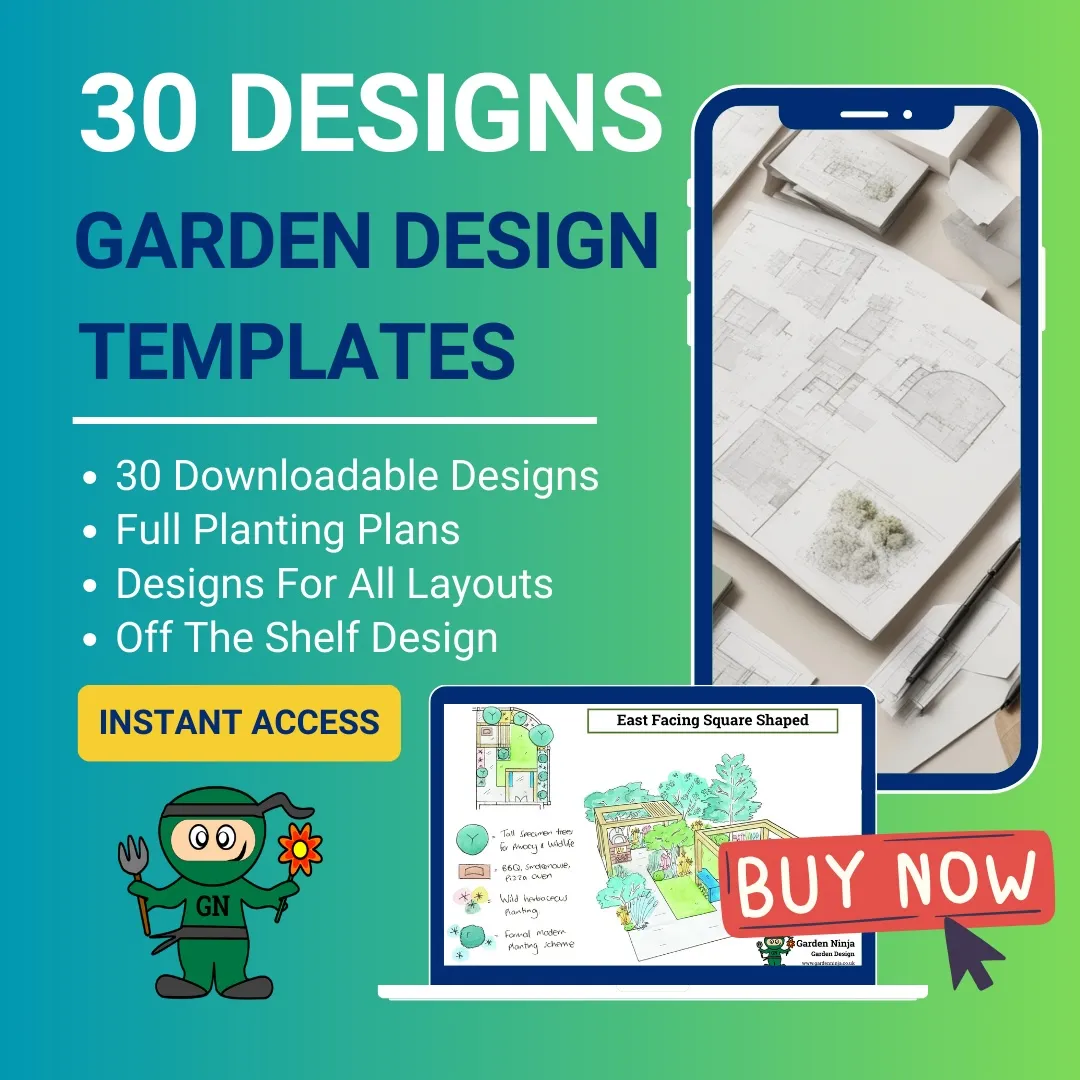
This is a library of 30 of my garden designs for small and urban gardens, each with a full planting plan, a downloadable plant list and a behind the design explanation of why the layout and plants work. The designs cover different shapes, aspects and soil types, so there is usually one close to your own garden that you can adapt. Because every plan was drawn to scale with plants at their mature size, they also show you what a realistically planted border looks like on paper, which is a useful corrective to the crowded borders in most apps.
It suits someone with a small garden who wants a proven starting point quickly. It will not teach you the full design process from survey to finished plan, so if you want to design from scratch, look at the courses below. See the 30 garden design templates course.
This one is for the garden you already have. It is seven printable checklists with video lessons, built around the questions I work through when I take on an inherited or overgrown garden: a site assessment covering aspect, sun, shade, drainage and soil, a reuse audit of what is worth keeping, budget priorities and a simple plan for what comes next. It is the thinking that should happen before anyone opens a design app.
It suits anyone who has moved into a house with an established garden and does not know what to keep. It is not a blank canvas design course and does not include design templates. See the New Garden Starter Kit.
This is a focused course of around five hours, written for new build and blank canvas gardens, the bare rectangle of turf and fence panels that so many people are handed with a new house. It covers the design fundamentals, layout options and a beginner’s guide to planting, with five sample new build garden designs based on the most common plot shapes, quizzes along the way and a certificate on completion.
It suits someone with a new build garden who wants practical results over a weekend. It goes into less depth than the full beginners course, so if you are thinking about designing for other people, start with the next one. See the Weekend Garden Makeover course.
This is my complete beginner training: around 20 hours of study including practical assignments, video lessons, quizzes and case studies, taking you from site assessment and survey through layout, design styles and planting to a finished, buildable design. It includes lessons on drawing up a scaled garden design and a lesson comparing computer aided design in SketchUp with hand drawn design, so you can decide which suits you once you have the foundations. There is a certificate on completion and an active course forum for questions.
It suits anyone who wants to design their own garden properly, and people considering garden design as a career who want to test the water before committing to a longer qualification. It is not an accredited diploma, so if you need a formal qualification for employment, my how to learn garden design guide covers the college routes. See the Garden Design for Beginners course.
The bundle combines Garden Design for Beginners, the Weekend Garden Makeover and the 30 templates course for £249, against £327 if you bought them separately. If you plan to work through the full training and want the templates as a reference library afterwards, it is the better value way to do it. See the garden design courses bundle.
You can see all of them side by side on my garden design courses page.
For a simple 2D layout, Gardena’s myGarden planner is free, runs in a web browser and works on a 1 metre grid. For 3D modelling, SketchUp Free runs in a browser for personal use. Pair either with the free RHS Find a Plant database to check the mature height and spread of every plant you add.
SketchUp Pro is the most widely used 3D tool across garden design, often with its LayOut application for scaled drawings. Vectorworks Landmark is common in larger practices and for planting design, because it stores each plant’s mature height and spread. Many designers, including me, still draw the layout and planting plan by hand first.
Yes. Gardena myGarden, SketchUp Free, Planner 5D and GardenPuzzle all have free versions. They are useful for blocking out a layout, but their plant symbols are rarely shown at mature size, so check each plant’s spread and resize it before you trust the plan.
AI tools can generate pictures of a transformed garden from a photo, which can spark ideas. They do not produce a measured plan, they do not know your soil, aspect or levels, and the plants they show are often the wrong size or will not grow together. Use them for inspiration, then design properly to scale.
SketchUp has a free web version for personal, non-commercial use with the core 3D modelling tools. It does not include LayOut, DWG or DXF import and export, extensions or offline use. SketchUp Go costs around £110 a year and SketchUp Pro around £345 to £384 a year at the time of writing.
Yes. Morpholio Trace works like layers of tracing paper with scale tools, SketchUp runs on the iPad with a Go or Pro subscription, and Procreate is useful for colouring plans and painting visuals. With an Apple Pencil, an iPad is the closest digital alternative to drawing by hand.
Use 1:100 for most back gardens, where one metre in the garden is one centimetre on paper, which fits a typical garden on A3. Use 1:50 for small courtyards and detailed planting plans, where one metre is two centimetres.
Look up each plant’s ultimate spread on the RHS Find a Plant database, then draw it as a circle of that diameter at your chosen scale, using a compass on paper or resizing the symbol in software. When the circles touch, the border is full, even though it will look sparse on planting day.

Join over 100,000 gardeners on YouTube
Free gardening videos from the Garden Ninja, with 8 million views and counting.
Subscribe on YouTube, it’s freeIf this guide has convinced you to put the app down and pick up a scale ruler, my online courses take you through the rest of the process step by step, from measuring your plot to a planting plan drawn at mature size.
Courses start from £29, you study at your own pace, and you keep access for life.
For the garden you’ve already got, not the one you’re starting from scratch. Seven checklists and video lessons from BBC Garden Rescue’s Lee Burkhill, designed to help you decide what’s worth keeping before you spend a penny.
Garden Design Examples for Small Gardens: 30 Design Templates & Planting Plans: In this online gardening course, I’ll walk you through 30 fantastic garden designs, explaining the logic behind the layout and plant choices, plus take-home tips for applying them in your own garden.
Learn how to transform and design your garden with Lee Burkhill’s crash course in garden design. In over 5 hours, Lee will teach you how to design your dream garden. Featuring practical design examples, planting ideas and video guides. Learn how to design your garden in one weekend!
Garden Design for Beginners Online Course: Want to become a garden designer or design your own garden? This beginner course is for you. Join me, Lee Burkhill, an award-winning garden designer, as I train you in the art of beautiful garden design. Enjoy 20 hours of online study and video lessons, along with quizzes and a completion certificate.
Garden design software has come a long way, and tools such as SketchUp, Vectorworks Landmark and Morpholio Trace are part of how professional designers work. For a beginner, the free planners are fine for blocking out a layout, as long as you check every measurement and resize every plant to its mature spread, because most of them will let you squeeze in far more than your garden can hold and show plants at a fraction of their eventual size.
My advice is to draw your garden by hand to scale first. A scale ruler, graph paper, tracing paper and a compass will teach you proportion in a way no app can, and every design I produce still starts that way. Once you can do that, pick whichever software suits the job, and it will serve your design rather than dictate it.
Happy gardening, and if you are stuck choosing between apps or want a second opinion on a layout you have drawn, post it on the Garden Ninja forum and I will take a look.

Lee Burkhill, known as the Garden Ninja, is an award-winning garden designer and horticulturist with over 30 years of gardening experience and 15 years as a professional garden designer. A qualified RHS (Royal Horticultural Society) professional, Lee specialises in sustainable garden design and practical horticultural advice. He designs and presents on BBC1’s Garden Rescue and in leading gardening publications. Lee combines three decades of hands-on gardening knowledge with professional design qualifications to help gardeners create beautiful, functional outdoor spaces.
View all posts by Lee Burkhill







JOIN THE NINJAS

Be the first in line for new Guides, Discount codes and Offers